> For the complete documentation index, see [llms.txt](https://malbersanimations.gitbook.io/animal-controller/llms.txt). Markdown versions of documentation pages are available by appending `.md` to page URLs; this page is available as [Markdown](https://malbersanimations.gitbook.io/animal-controller/malbers-questforge/setup-instructions.md).
# Setup Instructions
### Before You Begin
Ensure the following are in place before running the setup:
* Your player GameObject is in the scene and tagged **`Animal`** (Player is the default but Animal is usually required for AC)
* Your Player GameObject has a TransformHook with the Malbers "**Player**" TransformReference Assigned
* Your main camera is tagged **MainCamera (likely a CMBrain)**
* Your main camera has a TransformHook with the Malbers "**Main Camera**" Transform Reference Assigned
* The QuestForge package has been imported into your project
{% hint style="warning" %}
**QuestForge uses Malbers ScriptableObject variable system to share player and camera references across all systems. The One-Click Setup creates these assets automatically if they do not exist at the following location: Malbers Animations\Common\Scriptable Assets\Hooks**
{% endhint %}
***
### Opening the Helper Tools Window
All setup is managed from a single editor window. Open it via:
**Tools → Malbers Quest Forge → Helper Window**
Or press **Ctrl + Shift + H** from anywhere in the Editor.
Alternatively, if you have a **QuestForgeHelper** component selected in your scene, use the **Open Quest Forge Helper Tools Window** button directly from its Inspector.
***
### One-Click Setup
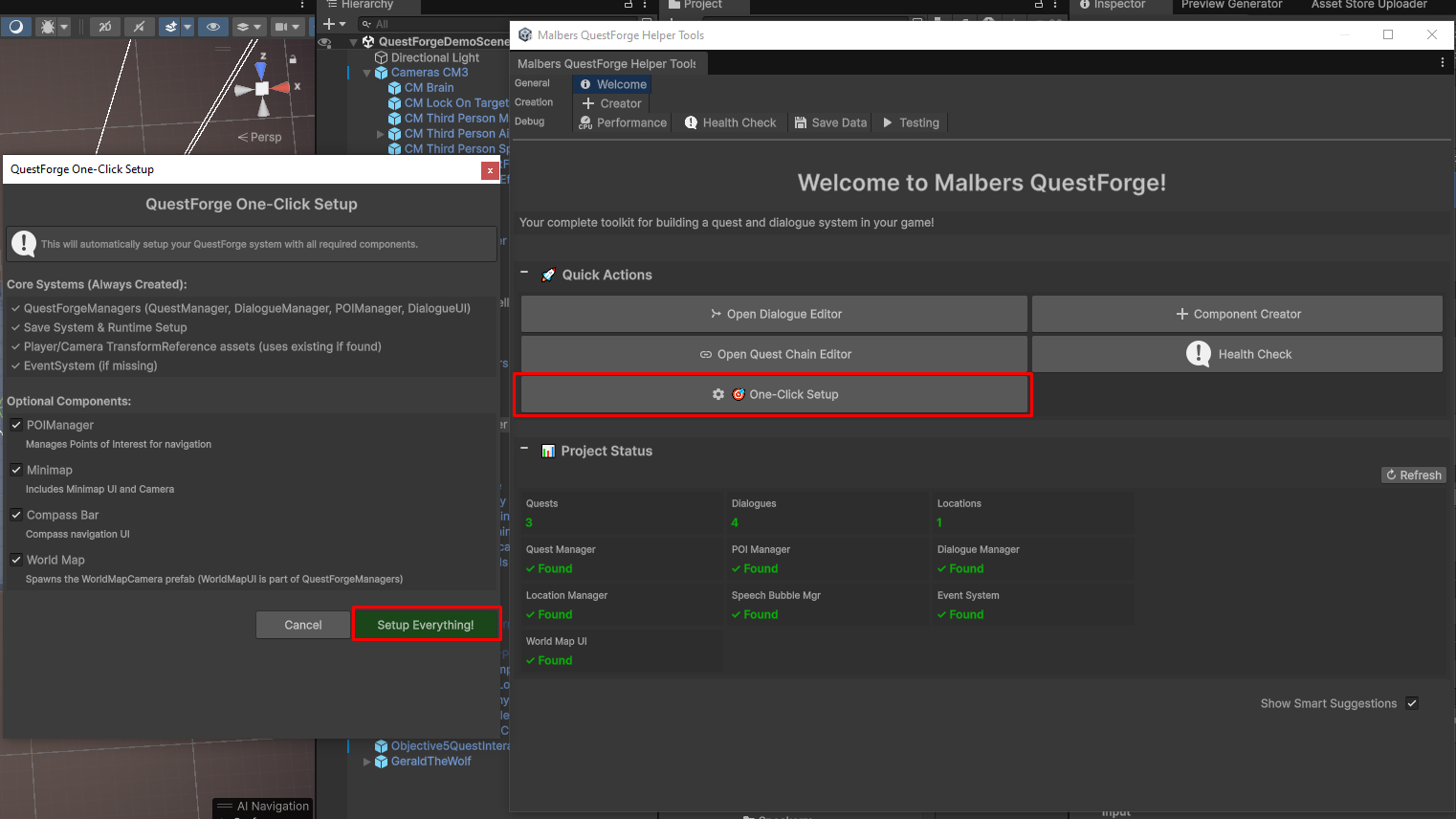
Navigate to the **Welcome** tab in the Helper Window and click **One-Click Setup**. This runs an automated 8-phase process that builds the entire system infrastructure in your scene:\
#### What It Creates
| System | Created Object | Notes |
| ------------------ | ------------------------------- | ----------------------------------------------------------------------------------------------------------------------------------------- |
| Core Managers | QuestForgeManagers prefab | Contains QuestManager, DialogueManager, QuestSaveSystem, DialogueSaveSystem, QuestForgeRuntimeSetup, and DialogueUI in a single hierarchy |
| Minimap | MinimapUI + minimap camera | Optional — toggle before running |
| Compass Bar | CompassBarUI | Optional — toggle before running |
| World Map | WorldMapUI | Optional — toggle before running |
| POI Filter Manager | POIFilterManager | Optional — toggle before running |
| Shared Variables | Player.asset, Camera Main.asset | TransformReference ScriptableObjects created in your project folders IF they dont already exist. |
#### What It Configures Automatically
* Player and camera references resolved by Tag/TransformReferences and wired into all systems
* Shared TransformReference assets assigned across all created managers
* Save system linked to QuestManager and DialogueManager
* All optional UI systems connected to the POI and Quest managers
{% hint style="warning" %}
**The One-Click Setup is designed to be run once on a fresh scene. Running it a second time will create duplicate manager objects.**
{% endhint %}
### After Setup
#### 1. WORLD MAP - Configure World Bounds
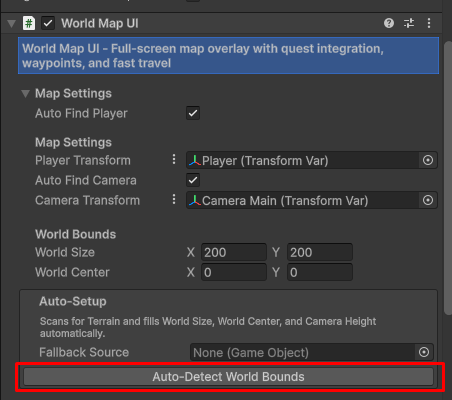
The World Map and Minimap both need to know the size and centre of your playable world. Select the **World Map UI** GameObject and, in the Inspector under **Map Settings**, click **Auto-Detect World Bounds:**
This scans your scene for Terrain and automatically fills in:
* **World Size** — the total XZ footprint
* **World Center** — the XZ midpoint
* **Camera Height** — 50 units above the terrain's maximum height
* **Far Clip Plane** — automatically adjusted on the **WorldMapCamera** to Camera Height + 100
If your scene uses no Terrain (e.g. a flat plane or a mesh-based world), assign your ground object to the **Fallback Source** field first, then click the button.
{% hint style="warning" %}
**If you are using a static map texture on the Minimap** **(rather than a render camera), set World Size and World Center on the MinimapUI component to match the WorldMapUI values — these are used to scroll the texture UV correctly as the player moves. In camera rendering mode, these fields are unused and can be ignored as they will be hidden.**
{% endhint %}
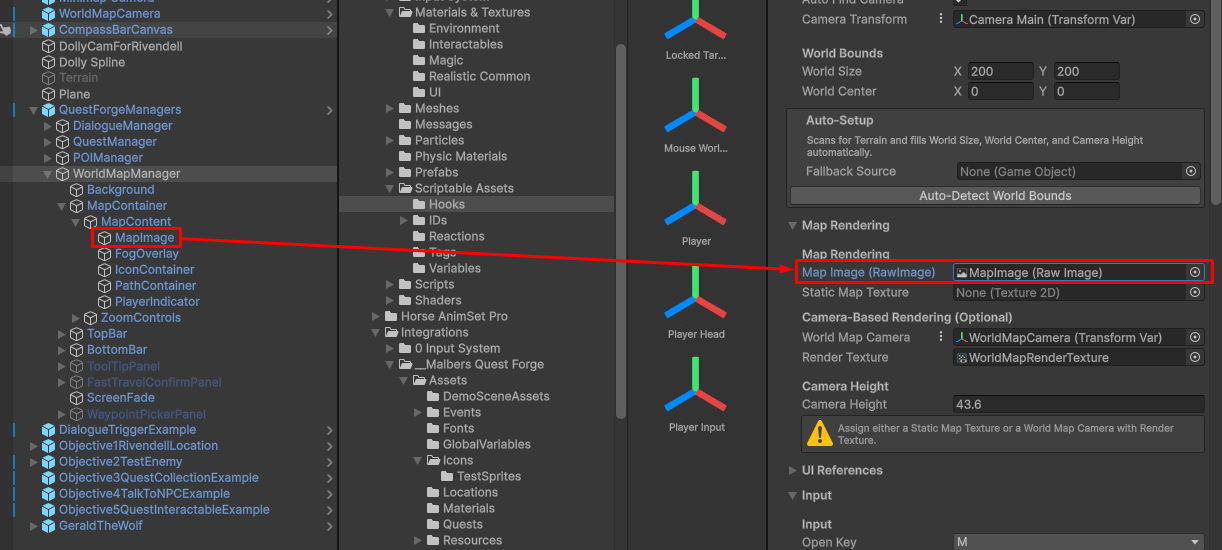
#### 2. WORLD MAP - Assign the Map Image
The World Map requires a RawImage UI element assigned to the **Map Image** field in the **Map Rendering** section. This SHOULD be already set on the Prefab, but please do double check! Without this, the camera rendering pipeline will not initialise and POI markers will be mispositioned. The RawImage to use is here:
### Adding NPCs and Interactables
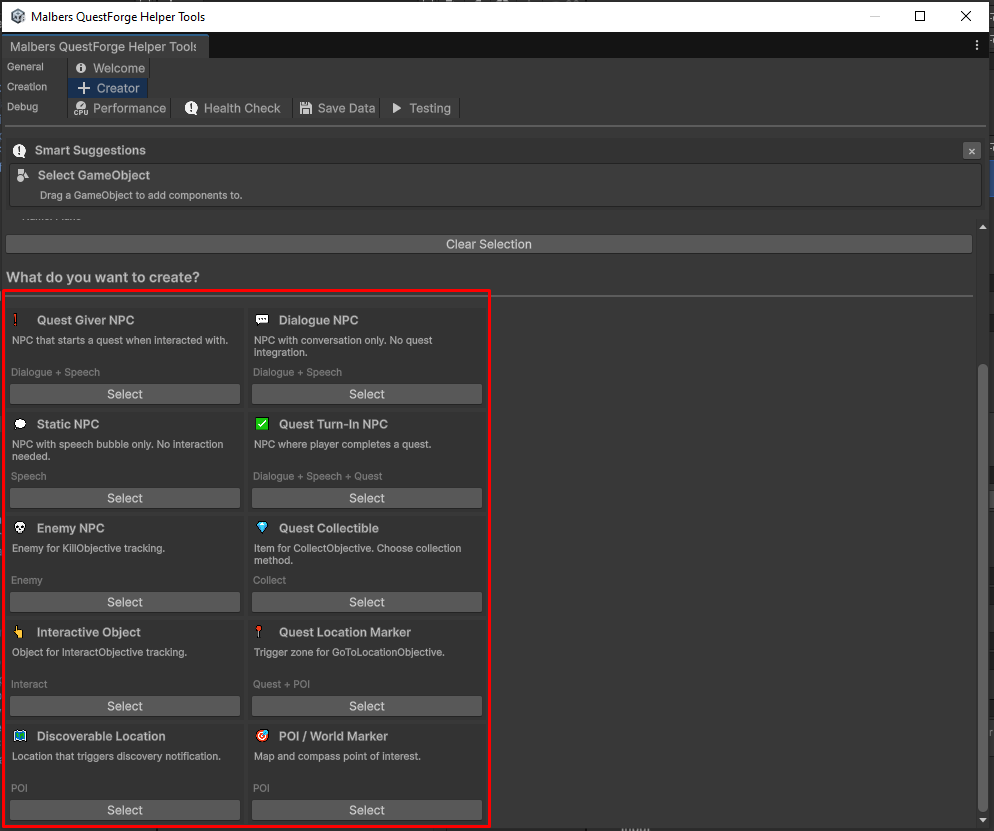
Use the **Creator** tab to add QuestForge components to individual GameObjects in your scene. Select a target GameObject, then choose either:
**Scenario Mode** — picks a preset for common use cases and adds all required components in one click:
| Preset | What It Creates |
| ------------------------- | ------------------------------------------------------------------------------------------------ |
| **Quest Giver NPC** | DialogueTrigger (OnInteract) + NPCSpeechBubble + MInteract |
| **Dialogue NPC** | DialogueTrigger (OnInteract) + NPCSpeechBubble + MInteract |
| **Static NPC** | NPCSpeechBubble only — no interaction, no collider |
| **Quest Turn-In NPC** | QuestTrigger (CompleteQuest/Manual) + DialogueTrigger (OnInteract) + NPCSpeechBubble + MInteract |
| **Enemy NPC** | QuestEnemyReporter — no collider, auto-detects ID and Death State from MalbersAnimal |
| **Quest Collectible** | QuestCollectable + SphereCollider (trigger) + MInteract (if MInteract collection mode) |
| **Interactive Object** | QuestInteractable + MInteract + SphereCollider (trigger) |
| **Quest Location Marker** | QuestTrigger (CompleteObjective/OnTriggerEnter) + POIMarker + SphereCollider (trigger) |
| **Discoverable Location** | POIMarker (category: Location) + SphereCollider (trigger) |
| **POI / World Marker** | POIMarker only — no collider |
**Advanced Mode** — add individual components manually with full control over each setting.
{% hint style="warning" %}
**Sphere colliders are added automatically when a trigger-based activation method is selected. You can adjust the radius directly in the Creator panel before adding or on the Trigger itself.**
{% endhint %}
### New Input System Bridge
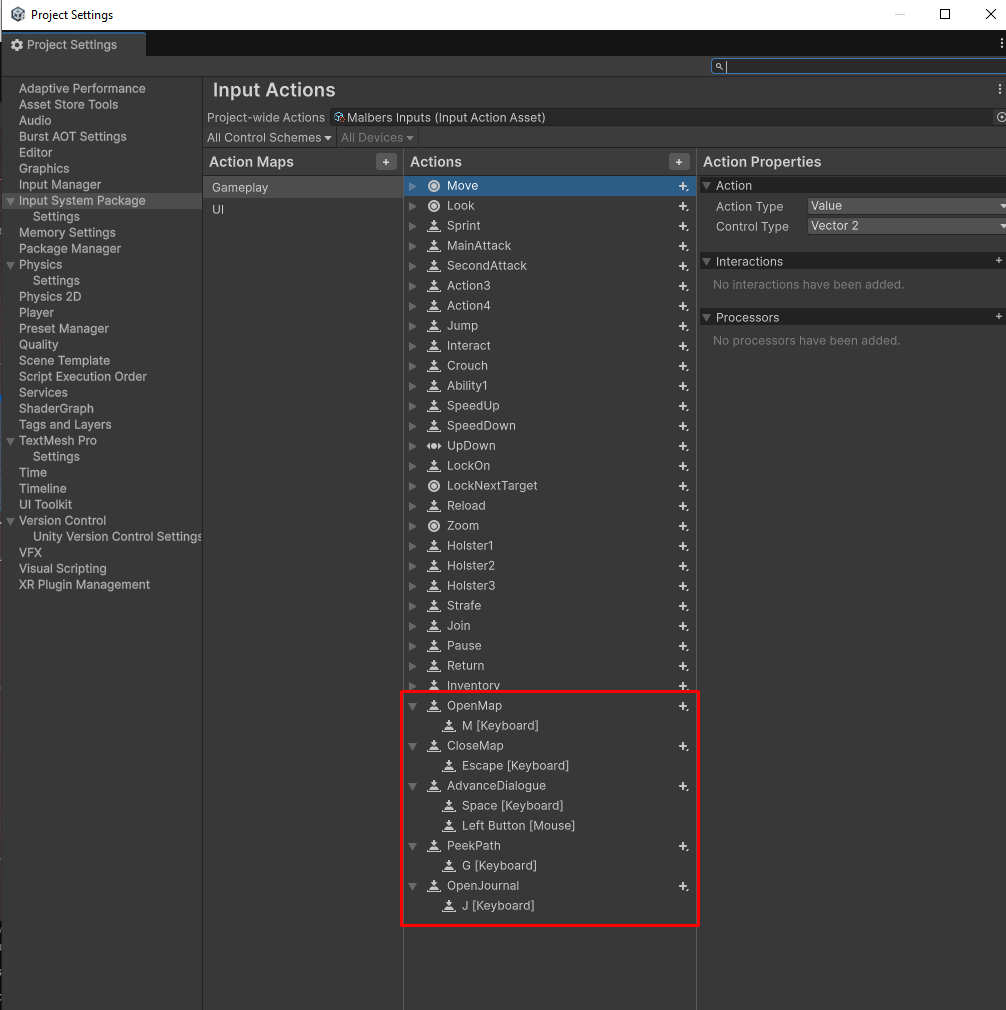
NOTE - If after doing the next part all of the inputs are not there (like they've disappeared!) this is a known issue with the QuestForge Input Action Asset. Instead, just revert back to the "Malbers Inputs" Input Action Asset in the Malbers Animations -> Common -> Assets -> Input System -> Assets folder and use that instead, then manually add the inputs below! Apologies for the issue!\
\
When using the New Input System (which is default and standard in Unity 6+), QuestForge requires that you also have a Quest Forge Input Bridge component on your character:
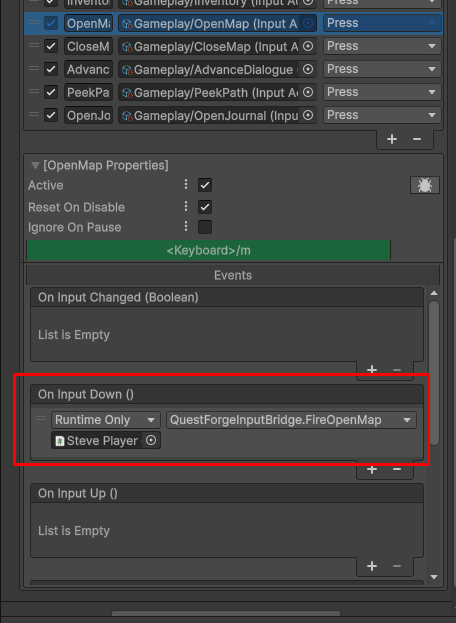
By having this component, this allows you to call the various inputs such as:
| InputRow Name | Suggested Key | Button Type | Notes |
| ----------------- | ------------- | ----------- | ------------------------------------------------------------------------------------------------------------------ |
| `OpenMap` | `M` | `Down` | Toggles the world map open/closed |
| `CloseMap` | `Escape` | `Down` | Closes the map (also catches Esc) |
| `Interact` | `E` | `Down` | QuestTrigger/DialogueTrigger interaction |
| `AdvanceDialogue` | `Space` | `Down` | Add a second binding for `Enter` if needed. You can also set it up via LeftMouseClick on the actual inputs itself! |
| `PeekPath` | `G` | `Down` | Path guide peek (only fires if Toggle Mode is on) |
An example of this is seen on the Steve Player - QuestForge prefab such as this:
### What Requires Manual Configuration
The One-Click Setup handles infrastructure but the following always require manual attention:
* **Quest assets** — create via right-click → Create → Malbers Quest Forge → Quest, then assign to QuestTrigger components
* **Dialogue graphs** — author in the Dialogue Graph Editor (opened from the Helper Inspector or Helper Window)
* **POI Data Assets** — create per location and assign to POIMarker components
* **DialogueSpeaker assets** — portrait, voice, and camera target per NPC character
* **UI Canvas layout** — position and size the Minimap, Compass Bar, and World Map panels to suit your HUD
* **Audio Clips and Sprites** — assigned per-component; none are provided by default
* **Ground Layer Mask** — set on WorldMapUI under **Waypoint Placement → Ground Layer Mask** to your terrain/floor layer so waypoints snap to the correct surface - make sure it's the same Ground Layer as what your Player Character uses in the Animal Component.