> For the complete documentation index, see [llms.txt](https://malbersanimations.gitbook.io/animal-controller/llms.txt). Markdown versions of documentation pages are available by appending `.md` to page URLs; this page is available as [Markdown](https://malbersanimations.gitbook.io/animal-controller/malbers-questforge/setup-instructions/creating-your-first-dialogue.md).
# Creating Your First Dialogue
This guide walks through creating a simple two-line conversation with an NPC from scratch. By the end you will have a Speaker asset, a Dialogue Graph, and a working trigger on a scene object.
{% hint style="warning" %}
Before starting, make sure you have run the One-Click Setup and followed the [Setup Instructions](/animal-controller/malbers-questforge/setup-instructions.md) so that **DialogueManager** is present in your scene. Dialogue cannot play without it!
{% endhint %}
### Step 1 — Create a Speaker Asset
A **Speaker** is a reusable ScriptableObject that defines who is talking — their name, portrait, and voice. **You create one per character.**
1. In the **Project** window, navigate to the folder where you want to store your dialogue assets (e.g. `Assets/Dialogue/Speakers`)
2. Right-click → **Create → Malbers Quest Forge → Dialogue → Speaker**
3. Name the asset after your character (e.g. **Speaker\_Blacksmith**)
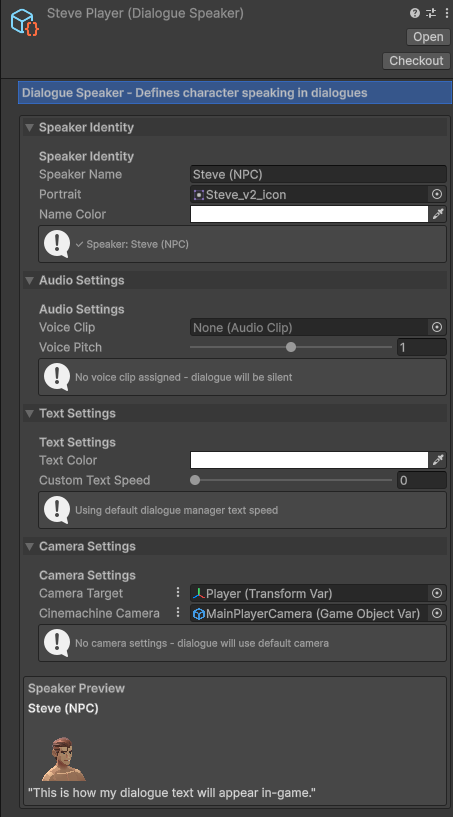
4. Select it and fill in the Inspector:
* **Speaker Name** — the name displayed in the dialogue UI (e.g. **Blacksmith**)
* **Portrait** — assign a Sprite for the character's avatar
* **Name Color** — colour of the speaker name text
* **Voice Clip** — optional audio that plays when this character speaks
Leave everything else at its defaults for now. It will look something like this:
### Step 2 — Create a Dialogue Graph Asset
A **Dialogue Graph** is the ScriptableObject that holds all the nodes and connections for a conversation.
1. In the **Project** window, navigate to your dialogue folder (e.g. Assets/Dialogue)
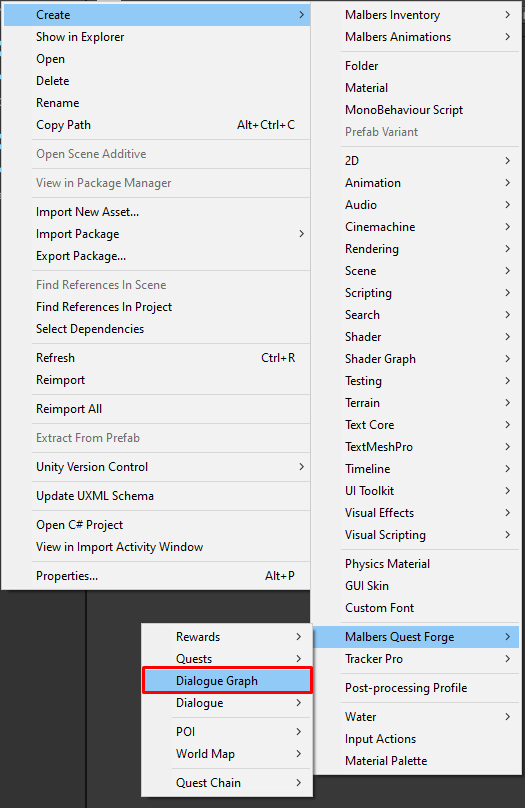
2. Right-click → **Create → Malbers Quest Forge → Dialogue Graph**
3. Name it descriptively (e.g. Dialogue\_BlacksmithIntro)\
Alternatively you also can:
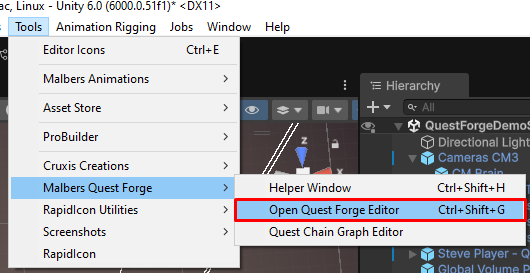
1. Open the QuestForge Dialogue Graph by navigating to: Tools -> Malbers Quest Forge -> Open Quest Forge Editor
2. Once it opens, use the Save button at the top of the screen to save where you want it (e.g. Assets/Dialogue).
### Step 3 — Build the Graph
1. **Double-click** the Dialogue Graph asset to open it in the **Dialogue Graph Editor** (or if already inside the Graph Asset Ignore This!)
2. You will see two nodes already present — a **Start Node** and an **End Node**. Do not delete these.
1. If the Graph Nodes are not present, go ahead and right click anywhere on the empty canvas, and Add a Start Node and a End Node.
#### Add a dialogue line
3. Right-click anywhere in the empty canvas and select **Simple Dialogue Node**
4. On the new node:
* Assign your **Speaker** asset to the Speaker field
* Type your NPC's line into the **Dialogue Text** field (e.g. "Welcome to my forge, traveller.")
#### Wire it up
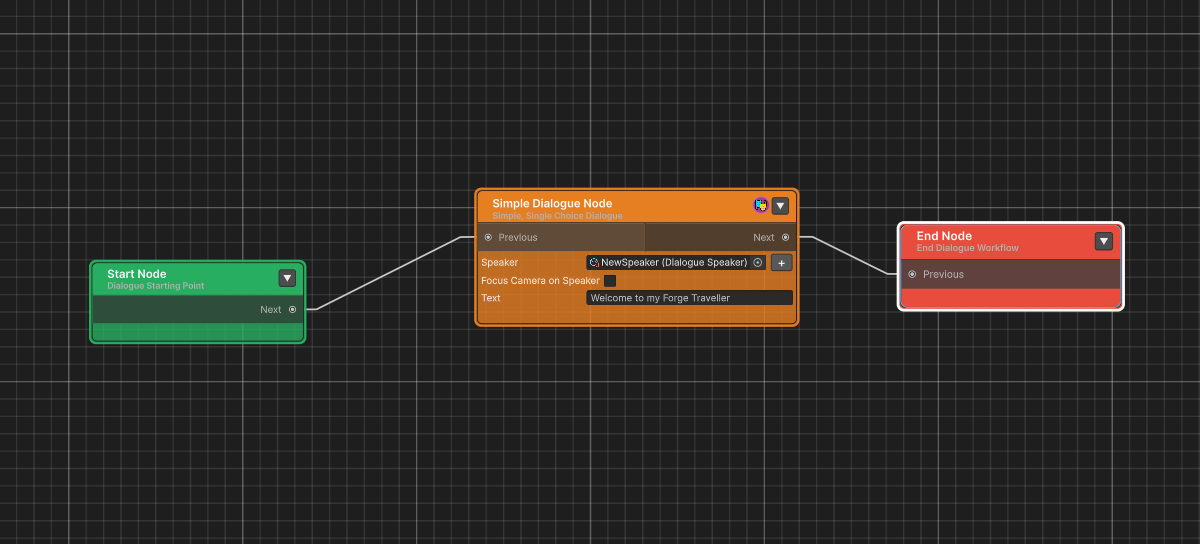
5. Click and drag from the **output port** (right side) of the **Start Node** to the **input port** (left side) of your **Simple Dialogue Node**
6. Click and drag from the **output port** of your **Simple Dialogue Node** to the **input port** of the **End Node**
Your graph should now read: **Start Node → Simple Dialogue Node → End Node** and look something like this:
7. **Save** the graph (Ctrl+S or the Save button in the editor toolbar)
{% hint style="danger" %}
**Make sure the graph is saved before continuing!**
{% endhint %}
{% hint style="warning" %}
**The Start Node is the entry point — the graph always begins there. The End Node closes the conversation and returns control to the player. Every path through your graph must reach an End Node.**
{% endhint %}
### Step 4 — Set Up the NPC
You now need a scene object that plays this dialogue when the player walks into the trigger collider that it has. For this simple example, the workflow will be Player walks into trigger collider -> Dialogue Starts.
1. Select your NPC GameObject in the Hierarchy
2. Open **Tools → Malbers Quest Forge → Malbers Quest Forge Helper Tools** (Ctrl+Shift+H)
3. Go to the **Creator** tab, select your NPC as the target
4. Choose the **Dialogue NPC** preset and click **Select**
5. Scroll down and Review the Components that will be added
6. This adds a **DialogueTrigger** and **MInteract** component automatically. It also adds a NPCSpeechBubble component but we will remove that after.
7. Choose the Create Dialogue NPC button at the bottom (The big green one!)
8. Now choose your gameobject in the hierarchy and review it and do the following:
1. Remove the Interactable/MInteract Component - Not Required for this tutorial
2. Remove the NPCSpeechBubble Component - Not Required for this tutorial
Then assign your graph:
6. Select the Gameobject and find the **DialogueTrigger** component in the Inspector
7. Drag your Dialogue Graph asset that you created before into the **Dialogue** field
8. Change the Trigger Type to "On Enter"
9. Change the Required Tag to whatever your players tag is (Usually "Animal").
10. If your Gameobject doesnt have a collider, use the Add Sphere Collider or Add Box Collider Button to add one.
11. Turn off all settings under the Quest System Integration section
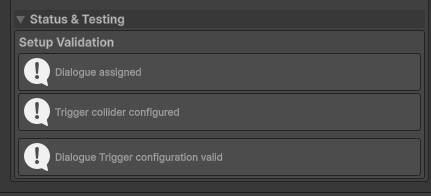
12. Leave everything else as it is. If setup correctly you'll see this under the Status & Testing section:
{% hint style="info" %}
**For this example we are using the scenarios in the Helper Tools but once you feel more comfortable with the asset, you can always add these manually!**
{% endhint %}
### Step 5 — Test It
1. Press **Play** in the Editor
2. Walk your player up to the NPC and walk into the trigger
3. The dialogue UI should appear and display your first line
4. Click anywhere on the screen using the Left Mouse Click to continue dialogue.
5. The dialogue closes automatically when it reaches the End Node
{% hint style="success" %}
**CONGRATULATIONS! If everything has gone well, you've just created your first dialogue in the system! If it hasn't gone well, re-review the above steps to make sure it's all set correctly!**
{% endhint %}
### What Next?
Now that you have a working dialogue, here are natural next steps you could try:
* **Add player choices** — use a [Choice Dialogue Node](/animal-controller/malbers-questforge/dialogue-system/nodes/choice-dialogue-node.md) instead of [Simple Dialogue Node](/animal-controller/malbers-questforge/dialogue-system/nodes/simple-dialogue-node.md) to give the player response options that branch to different outcomes
* **Conditional dialogue** — add a [True/False Node (Conditions2)](/animal-controller/malbers-questforge/dialogue-system/nodes/true-false-node-conditions2.md) to show different lines depending on quest state or dialogue flags (e.g. different greeting after the player has completed a quest)
* **Quest integration** — add a [Quest Node](/animal-controller/malbers-questforge/dialogue-system/nodes/quest-node.md) inside the graph to start or complete a quest as part of the conversation
* **Camera control** — enable **Focus Camera on Speaker** on individual dialogue nodes, or add a [Cinemachine Node](/animal-controller/malbers-questforge/dialogue-system/nodes/cinemachine-node.md) for cinematic camera cuts
* **NPC animation** — use a [Character Action Node](/animal-controller/malbers-questforge/dialogue-system/nodes/character-action-node.md) to trigger an animation state on the NPC at any point in the conversation
* **Save state** — enable **Trigger Once** and **Save Trigger State** on the DialogueTrigger so the NPC remembers it has already spoken to the player between sessions