> For the complete documentation index, see [llms.txt](https://malbersanimations.gitbook.io/animal-controller/llms.txt). Markdown versions of documentation pages are available by appending `.md` to page URLs; this page is available as [Markdown](https://malbersanimations.gitbook.io/animal-controller/malbers-questforge/setup-instructions/creating-your-first-quest.md).
# Creating Your First Quest
This guide walks through creating a simple quest from scratch — a quest giver that sends the player to a location, completing when they arrive. By the end you will have a Quest asset with an objective
{% hint style="warning" %}
Before starting, make sure you have run the One-Click Setup from [Setup Instructions](/animal-controller/malbers-questforge/setup-instructions.md)so that **QuestManager** is present in your scene. Quests cannot start or track progress without it.
{% endhint %}
### Structure
A **Quest** is a ScriptableObject that defines the quest's name, description, type, and list of objectives.
The best way to think of a Quest is to compare it to a GameObject with many children, where the Quest is the parent, and the Objectives are the children that make up the full Quest. \
\
When a Quest starts, it will automatically start the first Objective and other objectives will only become active once the objective before it, is complete. Lets create a really simple "Go to Location" Quest to try.
### Step 1 — Create a Quest Asset
1. In the **Project** window, navigate to the folder where you want to store your quest assets (e.g. Assets/Quests)
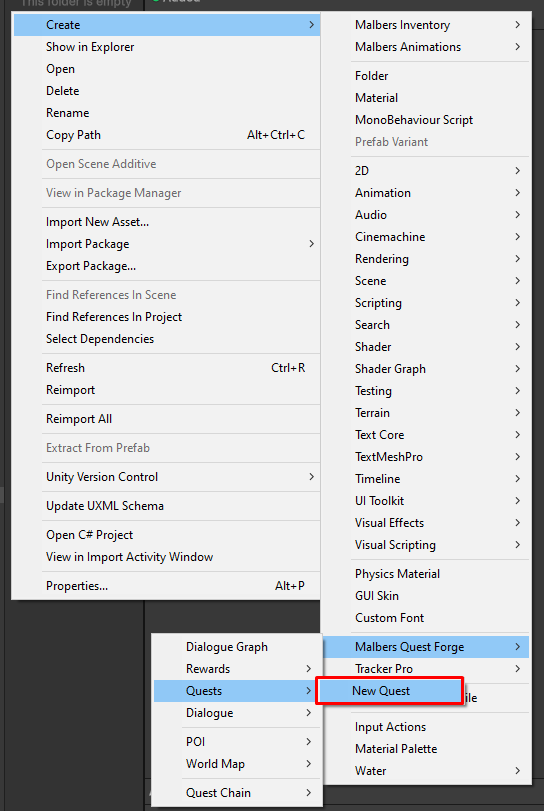
2. Right-click → **Create → Malbers Quest Forge → Quests → New Quest**
3. Name the asset (e.g. Quest\_FindTheMarket)
4. Select it and fill in the Inspector:
* **Quest Name** — the name displayed to the player (e.g. Find the Market)
* **Quest Description** — a short brief shown in the journal (e.g. The merchant told you to meet them at the market square.)
* **Quest Type** — set to **Main** for now
* Leave **Quest ID** as-is — it is auto-generated and must stay unique
* Do not set any other settings for now
### Step 2 — Create a Point of Interest Asset
A **Point of Interest** (POI) is a ScriptableObject that defines a named location — its icon, display settings, and world position. By assigning one to your objective, the destination automatically appears on the world map, minimap, and compass for the player.
1. In the **Project** window, navigate to your POI folder (e.g. `Assets/POIs`)
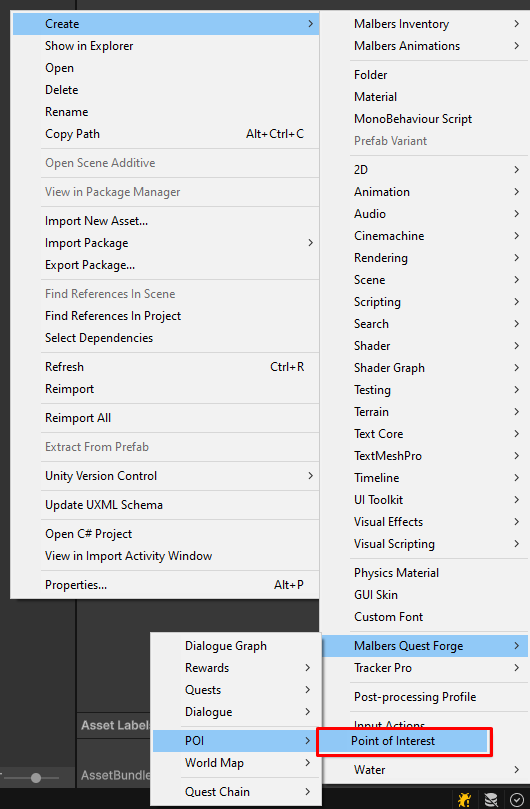
2. Right-click → **Create → Malbers Quest Forge → POI → Point of Interest**
3. Name it after your destination (e.g. POI\_MarketSquare)
4. Configure it in the Inspector:
* **POI Name** — display name shown on maps and compass (e.g. `Market Square`)
* **Category** — set to `Location`
* **Location Type** — choose "Location"
* **Map Icon / Compass Icon** — assign sprites for the map and compass markers
* **Location Radius** — how close the player must get to count as arrived (e.g. `5`)
* Leave **World Position** at zero for now — you will set it from the scene in Step 5
* Under Display Settings set:
* Show on Minimap - True
* Show on Compass - True
* Show Distance - True
{% hint style="info" %}
The Location Type of "Location" has some extra workflows that trigger in the POIManager such as Location Discovery and Saving Location Data. Check out the [Points of Interest](/animal-controller/malbers-questforge/points-of-interest.md)page to learn more after this tutorial!
{% endhint %}
### Step 3 — Add a GoToLocation Objective
1. With your Quest asset selected, find the **Objectives** list in the Inspector
2. Click the **+** button and select **Go To Location Objective** from the dropdown
3. Configure the objective:
* **Description** — text shown to the player (e.g. Travel to the market square)
* **Location** — drag in your POI\_MarketSquare asset (The POI you just created!)
* **Use Manual Values** — leave this **off** — the position and radius are read directly from the POI asset
* Leave **Is Optional** unchecked
### Step 4 — Register the Quest with QuestManager
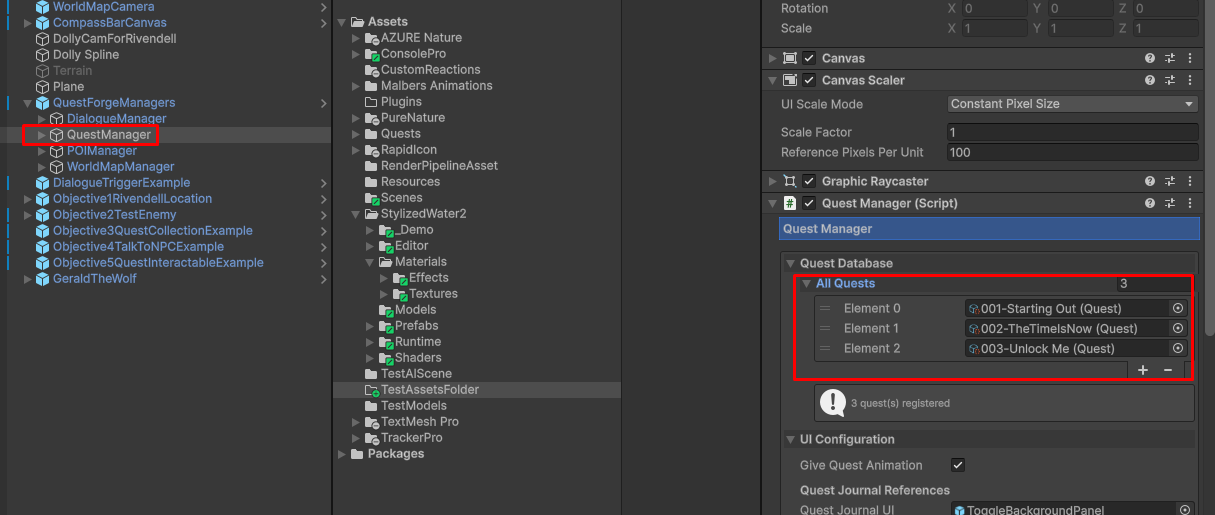
1. Select the **QuestManager** GameObject in your scene Hierarchy under QuestForgeManagers -> QuestManager
2. Find the **All Quests** list in the Inspector (At the very top under Quest Database!)
3. Click **+** and drag your Quest\_FindTheMarket asset into the new slot
### Step 5 — Place the Destination Marker in the Scene
This step creates the physical marker at the destination. It serves two purposes: it shows the destination icon on the map and compass, and it triggers quest completion when the player arrives.
1. Create a new empty **GameObject** at your destination position in the scene (e.g. name it Marker\_MarketSquare)
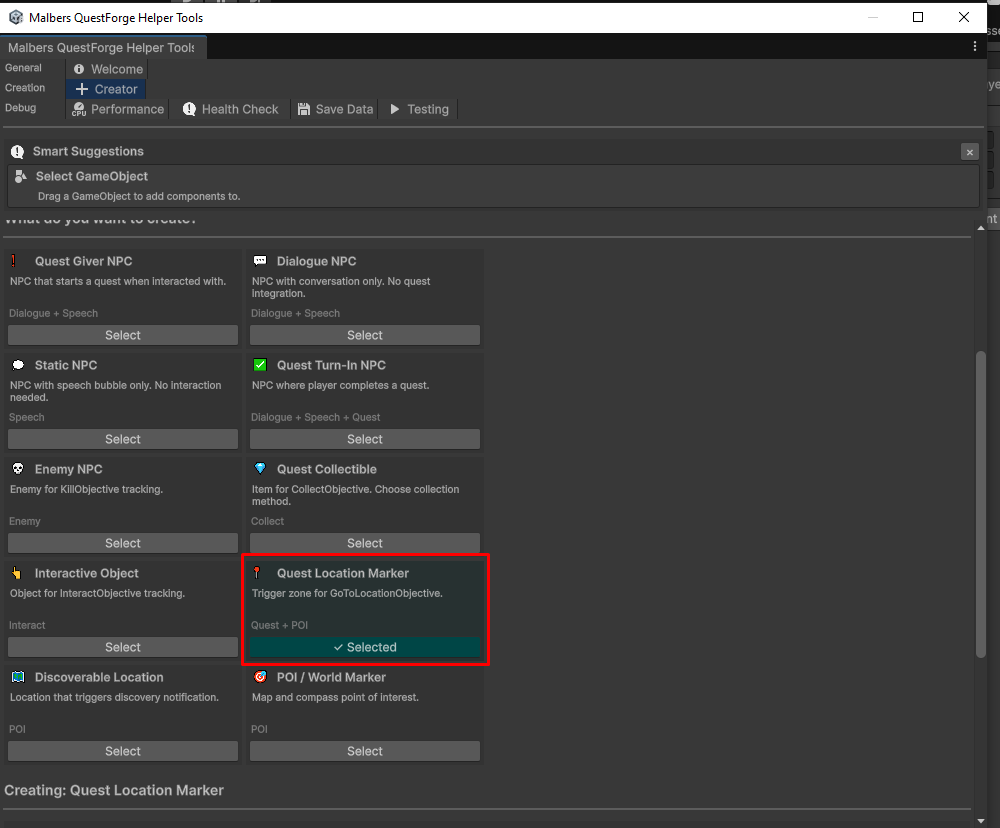
2. Select it, then open **Tools → Malbers Quest Forge → Helper Window** (Ctrl+Shift+H)
3. Go to the **Creator** tab and choose the **Quest Location Marker** preset — click **Select**
4. This adds a **POIMarker**, a **QuestTrigger** (CompleteObjective / OnTriggerEnter), and a **SphereCollider** (trigger) automatically
Then configure the components:
5. On the **POIMarker** component, Turn off "Use Custom Settings" and then drag in your POI\_MarketSquare asset to the POI Data field.
6. Click the **Sync World Position** button on the POIMarker under the Location Data Section — this bakes the GameObject's current world position into the POI asset so the map knows where to place the marker
7. Turn On "Enable Location Trigger" - This allows the location to feed back data to the relevant systems including the Quest System.
8. Turn Off "Auto-Complete Quest Objective" - We will sort this out on the QuestTrigger instead.
9. Under Quest Integration, choose the Quest we created before and choose the GoToLocationObjective - this ensures that this POIMarker is only visible when the Quest and relevant Objective is active.
10. On the **QuestTrigger** component:
* **Selected Quest** — drag in your **Quest\_FindTheMarket** asset
* **Quest Action** — set to **CompleteQuest**
* **Activation Method** — confirm it is set to **OnTriggerEnter**
* **Validate Quest State** — enable this so it only fires when the quest is actually active
### Step 6 — Set Up the Quest Giver
The quest giver starts the quest when the player interacts with it in some way. For now we will use a collider trigger to start the quest.
1. Select your NPC GameObject in the Hierarchy
2. Add a **Quest Trigger** Component to it and ensure it also has a collider with a good size radius.
3. On the **QuestTrigger**:
* **Selected Quest** — drag in Quest\_FindTheMarket (or whatever you called your quest)
* **Quest Action** — set to **StartQuest**
* **Activation Method** — set to **On Trigger Enter**
* **Activator Tag** - Set to Animal (or whatever tag your player character is using!)
### Step 7 — Test It
1. Press **Play**
2. Interact with the quest giver by walking into the trigger — the quest should start
3. Open the world map — your POI\_MarketSquare marker should be visible at the destination
4. Check the minimap and compass — the marker should appear there too as you face toward it
5. Walk to the destination and enter the trigger zone — the quest should complete
{% hint style="warning" %}
**If the map marker does not appear, check that you clicked Sync World Position on the POIMarker after placing it. If the objective distance never reaches zero, check that the POI's Location Radius and the SphereCollider radius are large enough. Also check the POI Scriptable Object to ensure that Show on Compass/World Map/Minimap are turned on!**
{% endhint %}
### What Next?
* **Add a Kill objective** — add a **Kill Objective** to your quest and place **QuestEnemyReporter** components on your enemy GameObjects to report kills automatically
* **Add a Collect objective** — add a **Collect Objective** and use the **Quest Collectible** preset in the Creator tab to set up collectible items
* **Add a Talk To objective** — add a **Talk To Objective**, then enable **Report to Quest System** on a **DialogueTrigger** and match the **NPC ID** field to the objective's target
* **Chain objectives** — add multiple objectives to a single quest; the QuestManager tracks all of them simultaneously and completes the quest only when all non-optional objectives are done
* **Add rewards** — expand the [Rewards](/animal-controller/malbers-questforge/quest-system/rewards.md) list on the Quest asset to grant items, experience, or fire events on completion (Note - Rewards need additional Setup required! Check the Rewards page for more info!)
* **Prerequisite quests** — use the **Prerequisite Quest IDs** list to prevent a quest from becoming available until another is finished
* **Quest journal** — assign UI prefabs to the QuestManager's journal fields to give players a full in-game quest log